
Notices
Community
LMS ID/PW Guide N
- Writer 국제교류처
- Date : 2025.11.18 19:52
- Views : 119
- ID,PW찾기,PW재설정(E).pdf (다운로드 : 15) 첨부파일 다운로드
Hello,
This is the Office of International Affairs at Seojeong University.
When students need to use the LMS system for online classes and academic management, they must log in. If you forget your ID or password, please follow the steps below.
We will also explain how to print important documents such as the Certificate of Enrollment and Academic Transcript, which are required for part-time job applications or visa applications.
1. How to Find Your LMS ID and Password
1) How to Find Your ID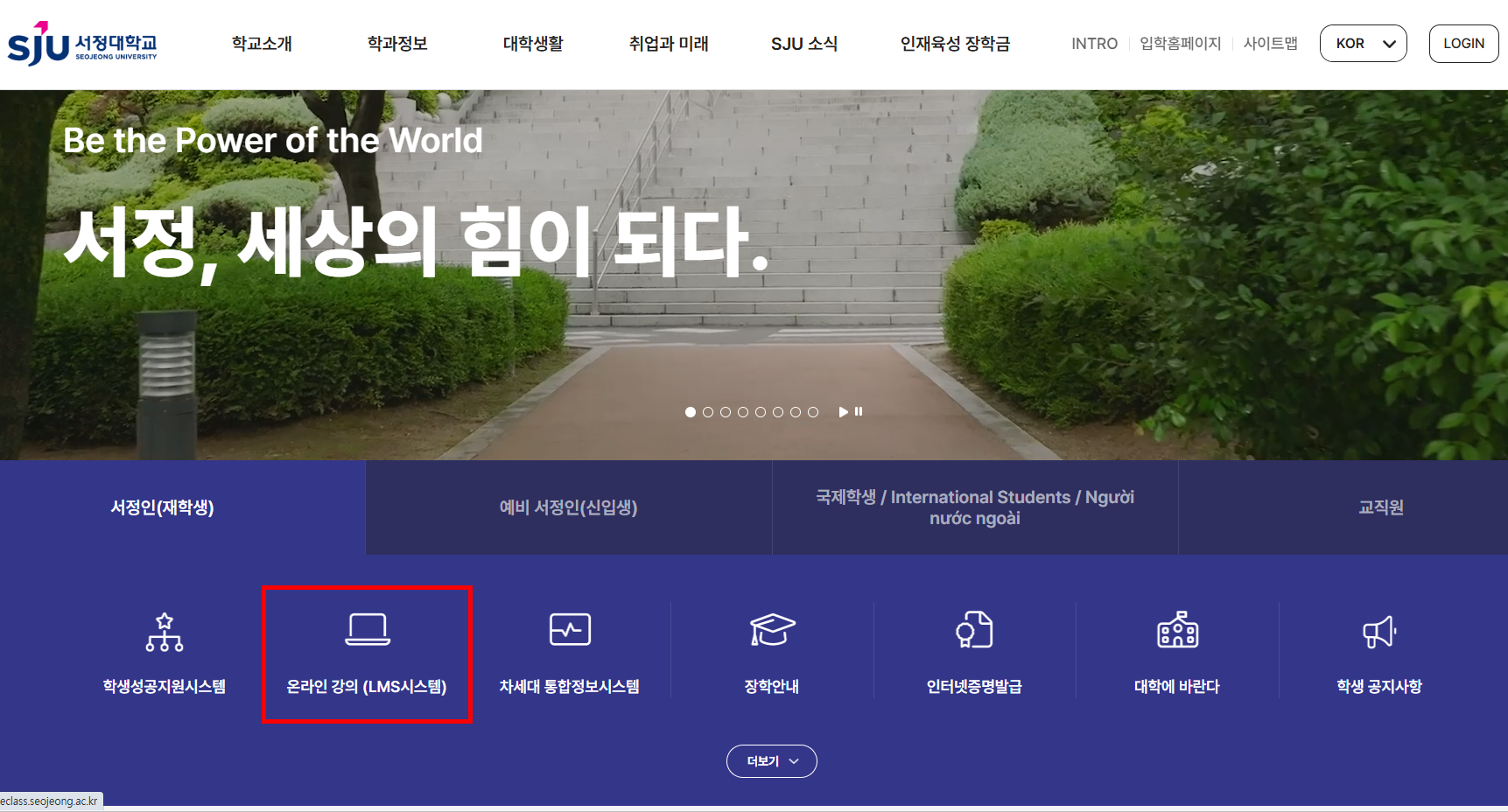
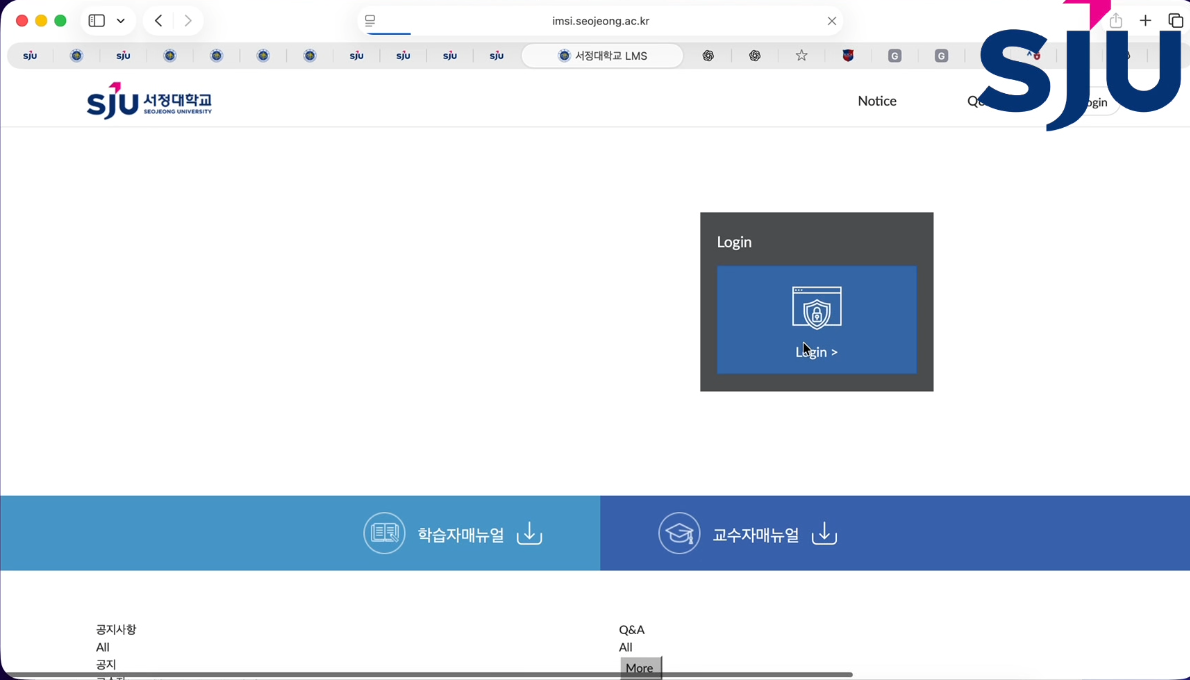
① Go to the Seojeong University homepage and move to the online class (LMS) page > Click Integrated Login.
 ② At the bottom right of the login page, click Find ID.
 ③ On the “Find ID” page, enter your name and email or mobile phone number > Click the Find ID button.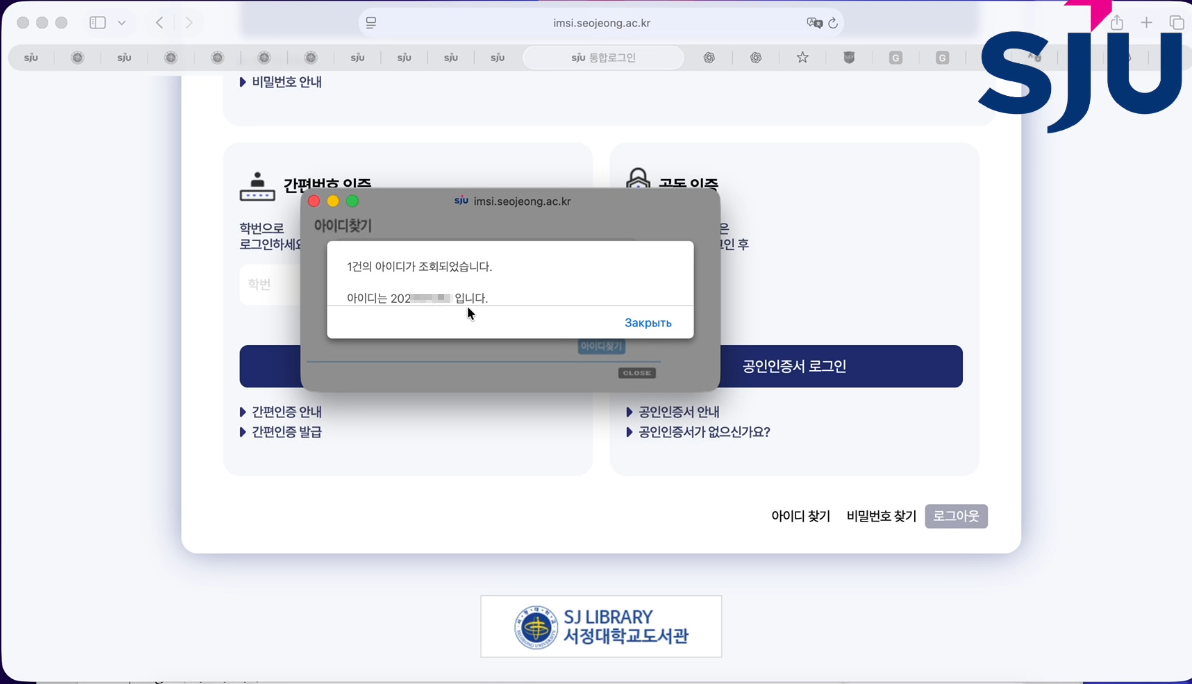
④ Check your ID shown on the screen.
2) How to Find Your Password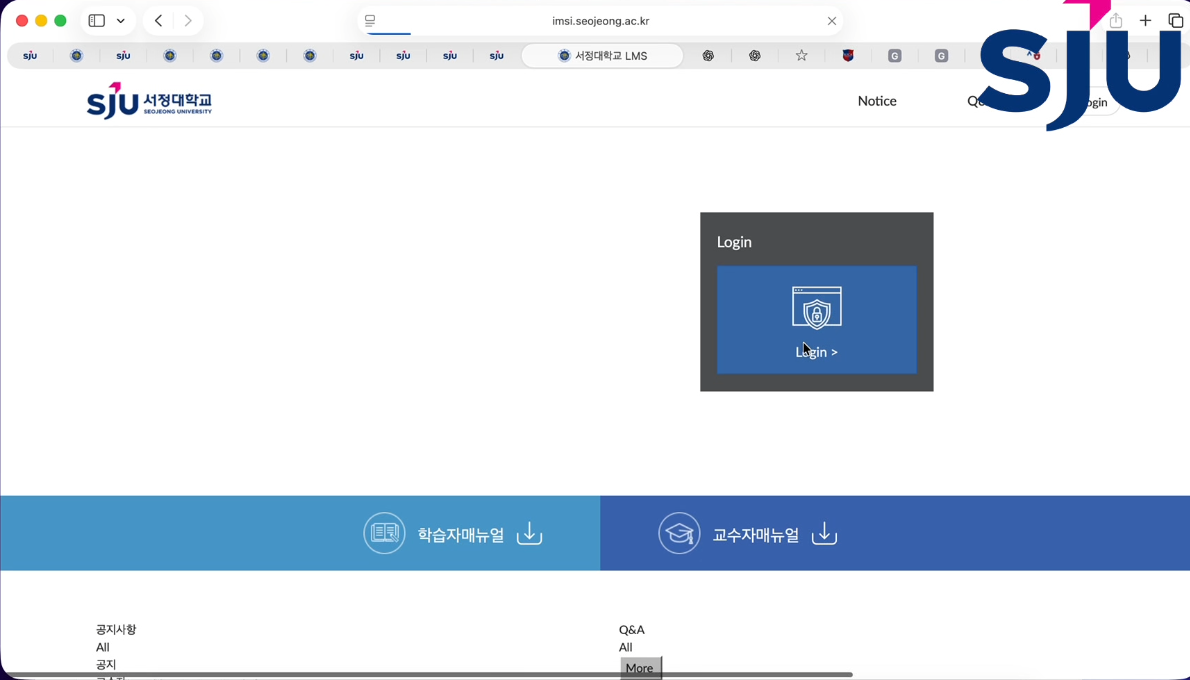
① Go to the Seojeong University homepage and move to the LMS page > Click Integrated Login.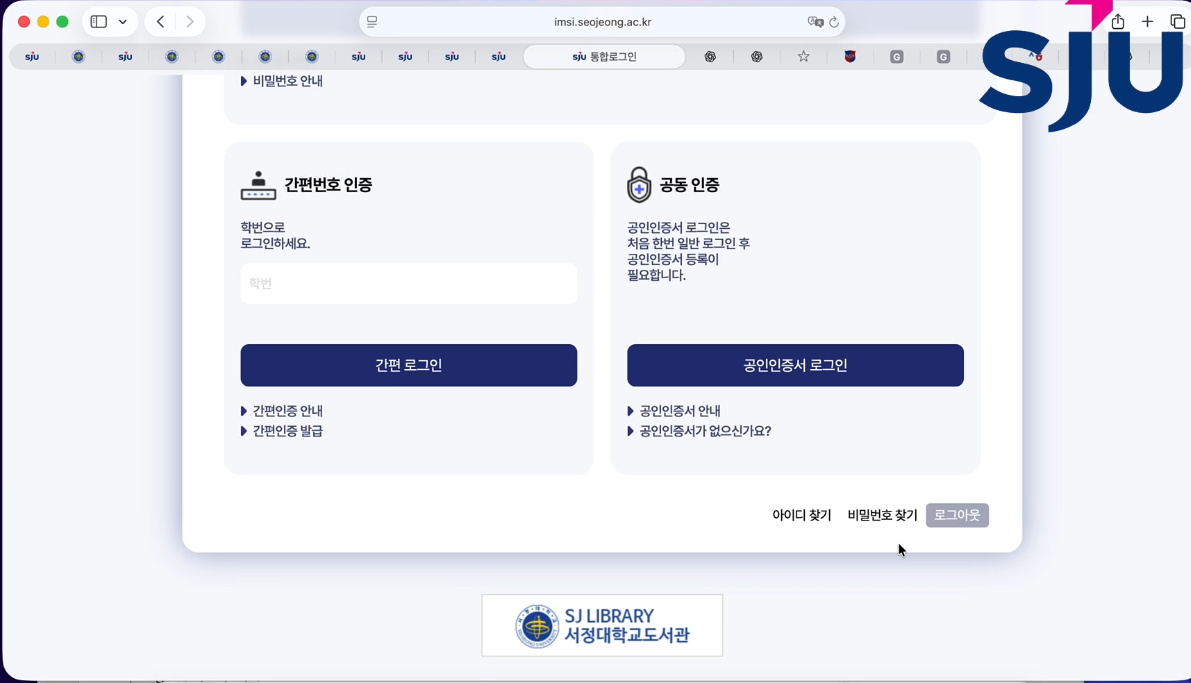
② At the bottom right of the login page, click Find Password.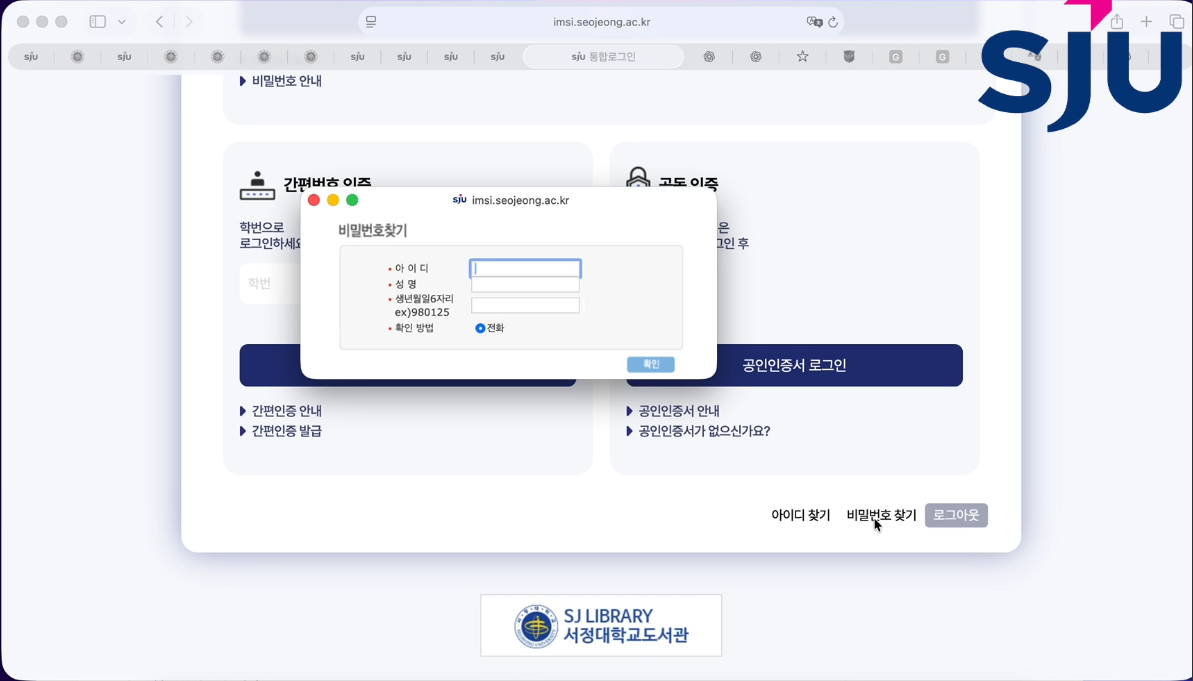
③ On the “Find Password” page, enter your ID, name, and date of birth (6 digits), then choose a verification method.
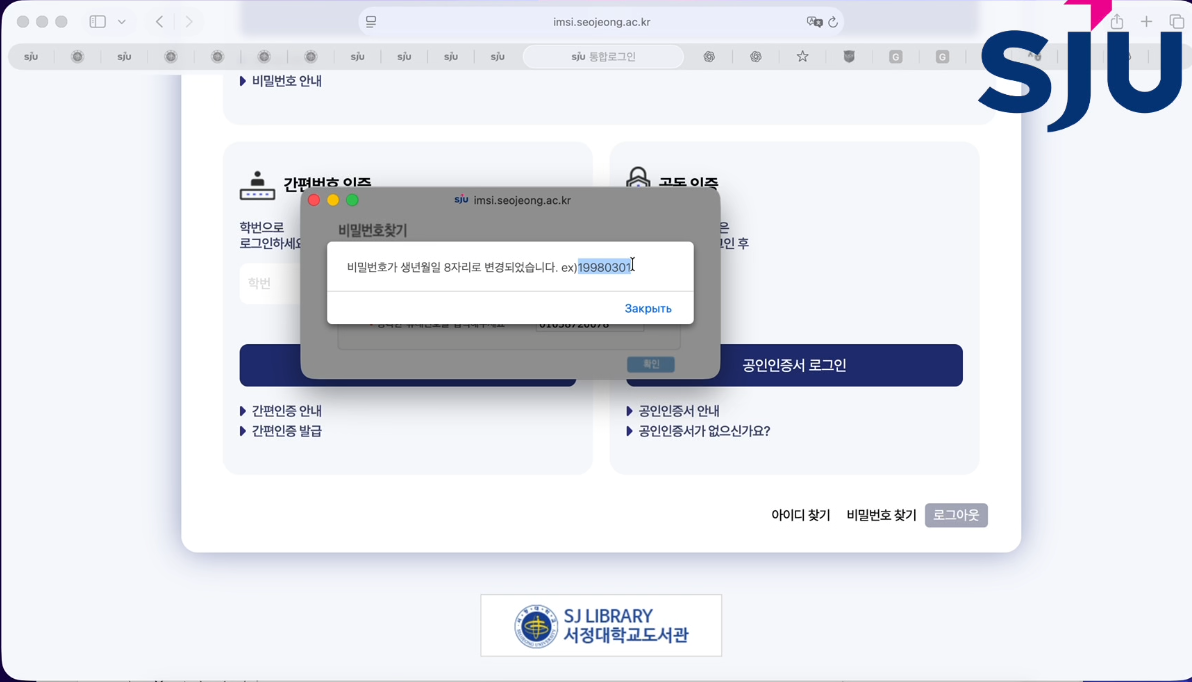
④ A message will appear: "Your password has been changed to your date of birth (8 digits)."
3) How to Reset Your Password ① Log in to the LMS system using the ID and password you just found.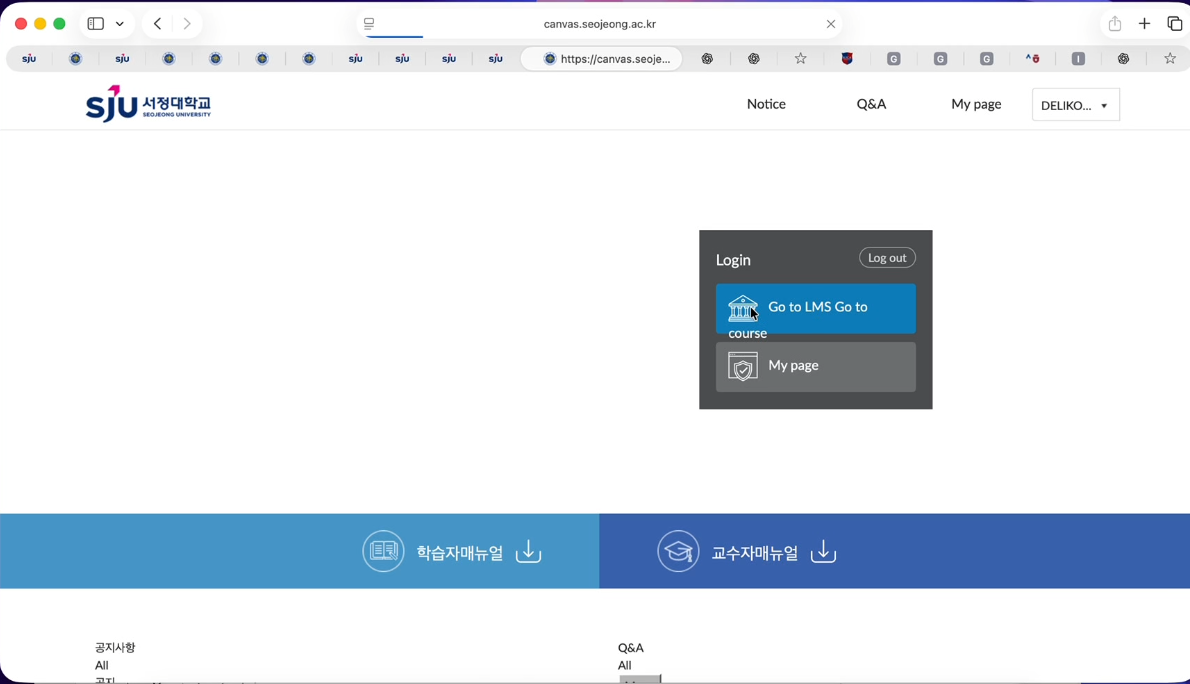
② Click the LMS button > On the left sidebar, go to Account – Settings – Change Password.
 > '암호변경'Click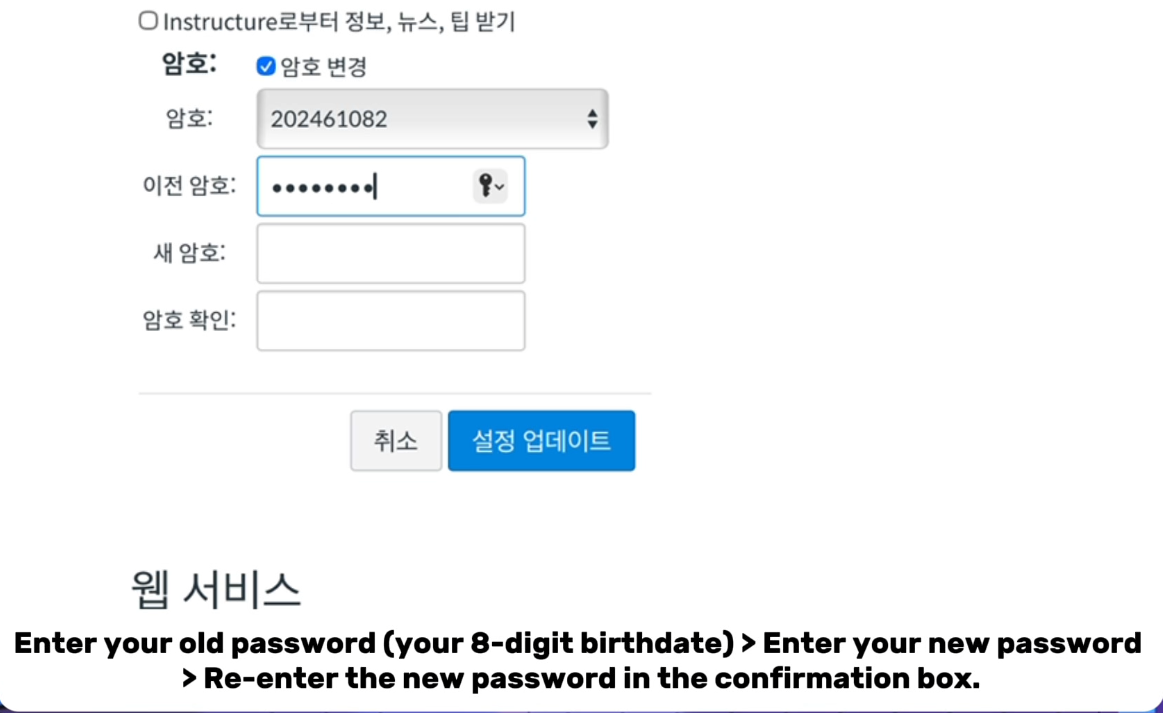
③ Enter your current password (date of birth, 8 digits) > Enter your new password > Re-enter the new password to confirm.
링크 : https://youtu.be/-N36NHxJPH8?si=cg9m_OJDzlaX9tNr
붙임 : ID,PW찾기,PW재설정(E)
Previous
홈페이지 이용과 관련하여 불편사항 및 건의사항, 보완사항 등의 요청이 있을 경우 아래 이메일 주소로 내용을 기재하여 보내주시면 적극 반영하도록 하겠습니다.
E-mail : webmaster@seojeong.ac.kr